NeuralScio is a native desktop research application in Public Alpha. During Public Alpha, the desktop app is free. Start with the desktop build to work with saved papers, your own PDFs, local library workflows, and local AI where configured.
Public Alpha
- NeuralScio is currently free while we test and stabilize the product.
- Paid subscriptions and credit checkout are not active during Public Alpha.
- Managed cloud AI, account credits, and team billing are future plans; launch timing and prices are not published.
Installation
Windows
- Download
NeuralScio-<version>-win64.zip - Extract it to any folder
- Run
NeuralScio.exe
Requirements:
- Minimum: Windows 10 version 1809 (build 17763) or later, 64-bit
- Recommended: Windows 10 22H2 (build 19045) or later, or Windows 11
- Older Windows 10 builds, Windows 8.1, Windows 8, and Windows 7 are unsupported and not tested
- Microsoft Visual C++ Redistributable 2022 (download)
Linux
- Download
NeuralScio-<version>.AppImage - Make it executable:
chmod +x NeuralScio-*.AppImage - Run it:
./NeuralScio-*.AppImage
Requirements:
- x86_64 architecture
- GLIBC >= 2.31
libfuse2
macOS
NeuralScio does not currently publish a verified macOS Public Alpha artifact. A source/build path is documented, but it is not a parity-tested download route. Do not treat the macOS build path as equivalent to the Windows or Linux Public Alpha packages.
First Run
The first useful path during Public Alpha is simple:
- Open your own PDFs or saved papers.
- Use the saved library and local reading workflow.
- Work with cached content where available.
- Use local AI where configured.
- Optionally connect your own API keys if supported in your build.
- Move into writing if the session becomes synthesis work.
External provider search requires network access. Managed cloud AI is not active during Public Alpha; use a local model or BYOK where supported.
A practical first session
Choose one route based on the material you already have:
I already have a PDF
- Open the desktop app and go to the Library or PDF import entry available in your build.
- Select a local PDF and wait for the import or open operation to finish.
- Check the visible title and first page before adding notes or annotations.
- Keep the original file until you have confirmed that the app can reopen the imported item.
This route avoids a scholarly-provider search. It does not establish where the app stores the imported copy or how long it retains it; see Backup, Restore & Data Locations before changing or resetting local data.
I need to find a paper
- Open Search from the main workspace or Help/Landing.
- Enter a short query and run it with the visible search action.
- Review the result title, source and access details before opening it.
- Save a result only after confirming it is the paper you intended to keep.
Provider search needs a network connection. A result can have metadata without an accessible full text or PDF. Use Scholarly Search and Data Providers for provider-specific limits.
I am preparing a draft
Open Writer after collecting the source material. Save the document to a path you can identify, and check the local LaTeX tools required by your chosen compile or export action. An AI suggestion is draft material; verify its claims and citations against the source papers.
If the first screen looks different
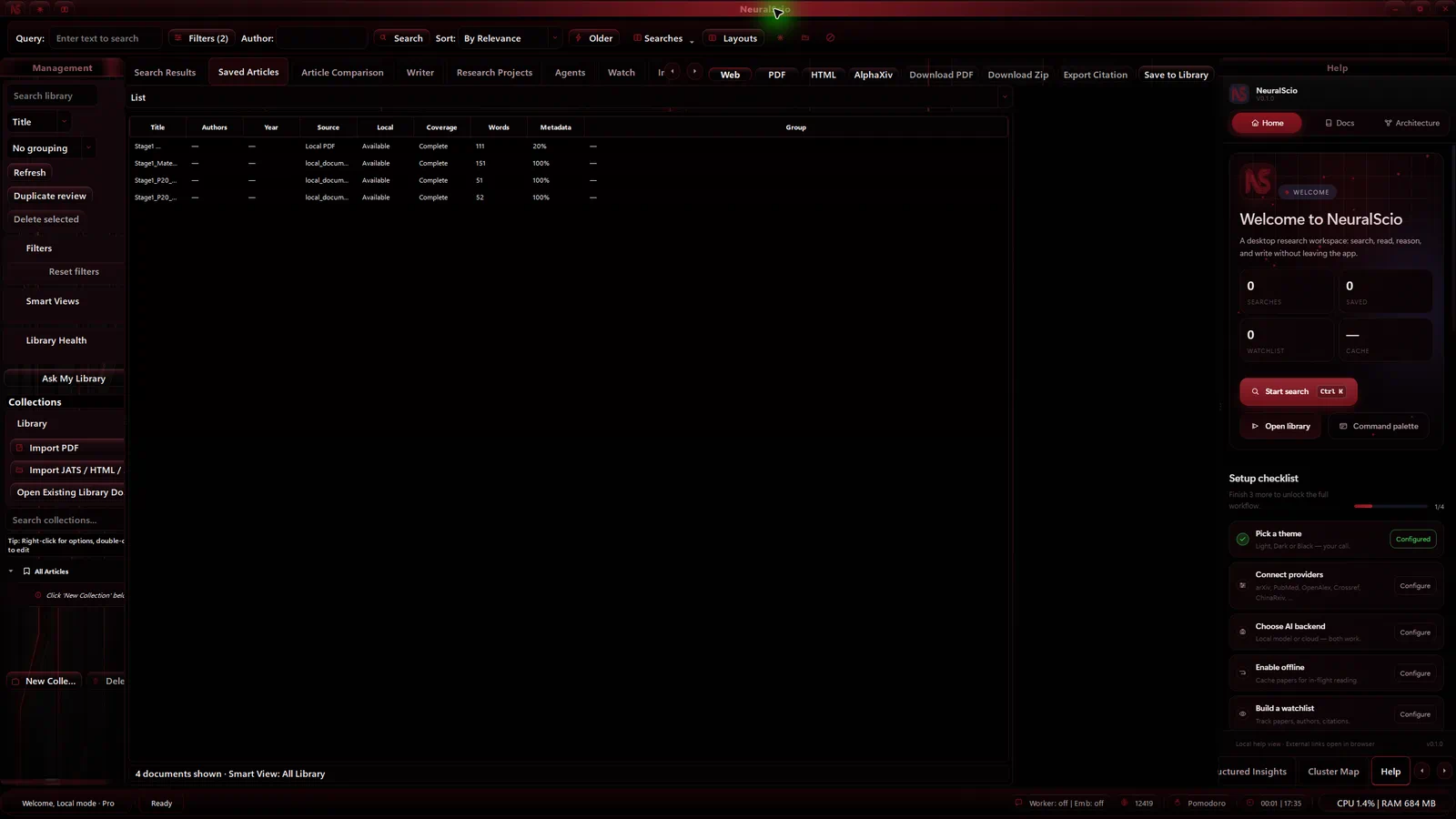
The desktop interface and exact control labels can vary by build. Use the current screen's visible labels and the Interface Tour; do not infer that a disabled or absent control is available from an older screenshot or article.
The first buttons to learn
If the interface feels large on day one, learn these buttons first:
| Button | What happens after you click it | | --- | --- | | Search | Opens the query workflow for finding new papers | | Saved / Library | Returns to papers and PDFs you already kept | | AI Assistant | Opens the cited Q&A dock for the current paper | | Writer | Opens the writing tab for notes, drafts, and LaTeX text | | Settings | Opens the configuration panels for providers, AI, theme, and cache |
For the full UI map, read Interface Tour.
Core Workflow
Search and triage
- Search across scholarly sources when network access and provider availability allow
- Filter and compare results without juggling multiple browser tabs
- Save important papers into the saved library
Note: Cached and saved work remains the strongest offline path. External provider search still depends on network access and provider availability.
Read and inspect
- Open PDFs in the built-in reader
- Search inside open PDFs
- Add highlights, notes, and other annotations
- Keep saved material available through local caching
Add AI and writing when needed
- Use local AI or BYOK depending on your setup
- Keep answers tied to the current research context instead of a detached chat tab
- Move into Neural Writer for LaTeX drafting and bibliography-backed citations
Accounts And Cloud Features
During Public Alpha, sign-in is optional for core desktop use.
Use sign-in when you need account-linked features such as:
- future managed cloud AI (not active during Public Alpha)
- sync surfaces when enabled
- future billing and credits
- future team administration
Experimental Technical Mode
NeuralScio also supports non-UI workflows for technical users.
--mcp-stdiostarts the headless MCP stdio path where included and enabled--headless --mcp-enabledcan start configured network MCP when the current settings and token permit it- Experimental MCP can be used by local tooling, scripts, or external AI agents when enabled in the current build
See MCP & Headless for the full setup.
Next Steps
- Read MCP & Headless if you want agent or automation workflows.
- Read AI Features if model choice and local-vs-cloud matters most.
- Read Pricing for Public Alpha access and future cloud/billing plans.
If a screen differs from this guide
Control placement and first-run screens can vary by desktop build. Follow the labels visible in your installed version. Keep original files until you have reopened the imported item, and save drafts somewhere you can identify before making substantial changes.